
Altium Designer Shortcuts: Control PCB Bulk Edits
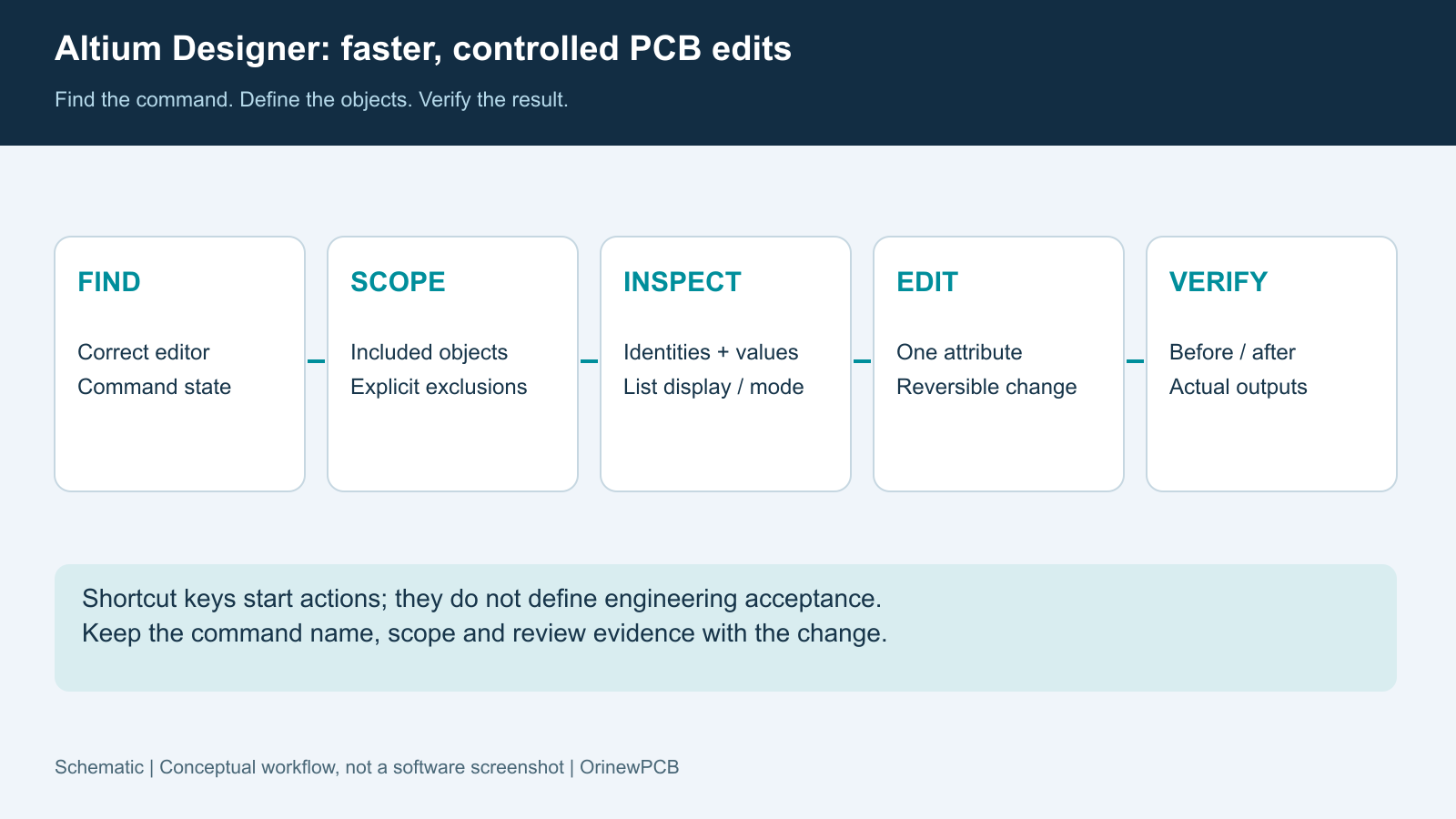
Table of Conent
Table of Conent
Altium Designer shortcuts are most useful when they shorten a controlled editing task: find the intended objects, inspect their properties, change a defined attribute, and verify the result. Learn the panel shortcuts and the difference between filtering, selection, and cross-probing before building a large personal key map. A highlighted board view does not, by itself, establish which objects a bulk edit will change.
For a PCB moving toward fabrication and assembly, the goal is consistent design intent after the edit. This guide focuses on interactive PCB changes and their review. It complements a release automation process; it does not replace design rules, engineering approval, or inspection of the generated manufacturing files.
Use shortcuts in the right editor and command state
Check the active editor and running command before using a remembered shortcut. A key combination can be editor-specific, customized, or meaningful only during an interactive operation.
Altium’s shortcut documentation identifies Shift+F1 as a way to see available actions while an interactive schematic or PCB command is running. Use that contextual list when the next action is unclear. A colleague’s key map is useful only after you know which command it invokes in your installation.
The following documented PCB editor defaults provide a small working set. Verify them against the installed software and local customization rather than treating the table as a universal keyboard configuration.
| Task | Default shortcut | Check after opening or running it |
|---|---|---|
| Inspect object properties | F11 | The intended objects and relevant property are in scope |
| Open the PCB Filter panel | F12 | The query, target scope, and result handling match the task |
| Open the PCB List panel | Shift+F12 | The displayed rows and View/Edit mode are appropriate |
| Find objects similar to a chosen example | Shift+F | The matching criteria include only the desired group |
| Remove an applied filter | Shift+C | Review the full design again, not only the filtered view |
Record the command name alongside any shortcut in team instructions. This lets another engineer find the operation through menus when a keyboard layout, version, or customized binding differs. It also makes a review note such as “inspect the PCB List display scope” more useful than a string of unexplained keystrokes.
Define the object set before changing properties
State what belongs in the change and what must remain untouched before choosing a selection method. Visual similarity alone is a weak specification for a batch operation.
Write a short scope statement: object type, layer, component group or net where relevant, attribute to change, and explicit exclusions. For example, a hypothetical silkscreen correction might target component designator text on the top overlay while excluding polarity symbols, logos, and bottom-side markings. Those objects can look similar on a crowded board yet serve different manufacturing purposes.
Altium’s query-language tools allow a filter to return objects matching an expression. Use the available query assistance and syntax checking when needed, then inspect the returned objects. Correct syntax establishes that an expression can be interpreted; it does not establish that the expression describes your intended engineering change.
Compare the result with a known example that should be included and one that should be excluded. Check both board sides and any relevant child primitives. If the result is surprising, revise the scope before editing. Keep a reversible checkpoint so an unexpected batch change can be separated from unrelated work.
Inspect the list, then make one controlled edit
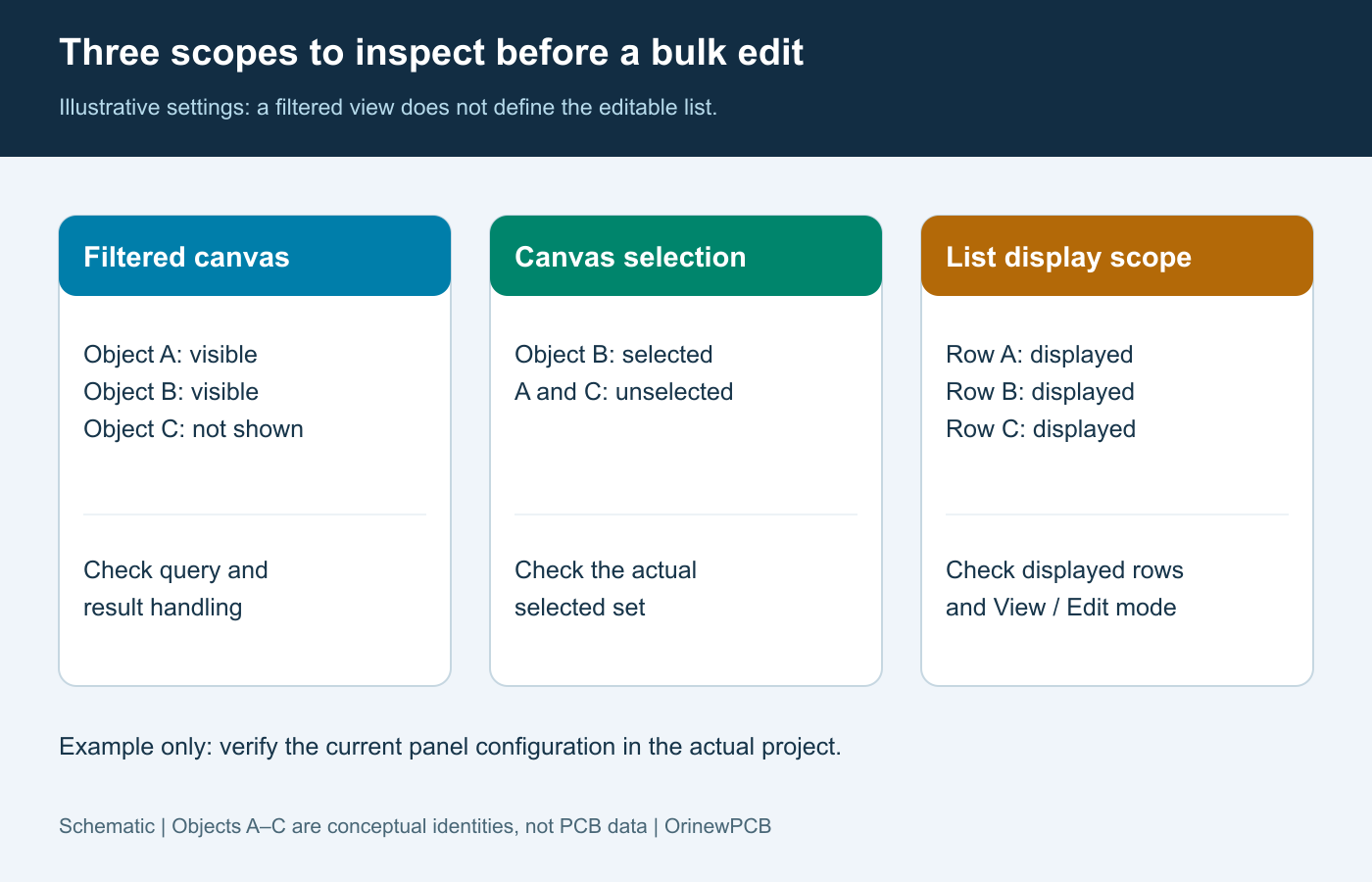
Check the actual editing surface before entering a new value. The selected objects in the canvas and the rows available in a List panel are related states that must be inspected separately.
Altium’s multiple-object editing guide explains that List panels can display and edit objects without those objects being selected in the design space. The panel has its own display scope and View/Edit mode. Therefore, do not infer the editing boundary from the highlighted canvas alone.
Start in a viewing state. Review object identities, relevant properties, and the rows the panel actually shows. For the hypothetical designator correction, confirm that the rows represent the intended designator strings rather than unrelated text. Note the starting values and the proposed change before enabling editing.
Change one attribute, inspect the result, and only then consider another attribute. This keeps the cause of an unexpected result clear. Avoid combining text size, position, rotation, and visibility changes into one undocumented action. Our PCB silkscreen design guide provides the manufacturing context for readable markings; the acceptable dimensions and clearances still need to match the project and supplier.
After the edit, compare the included and excluded examples again. If the approved correction cannot fit around the component geometry, share the affected artwork and marking requirements with the board revision and planned build quantity so the specific manufacturing question can be reviewed before output release.
Use cross-probing for identity and cross-selection for scope
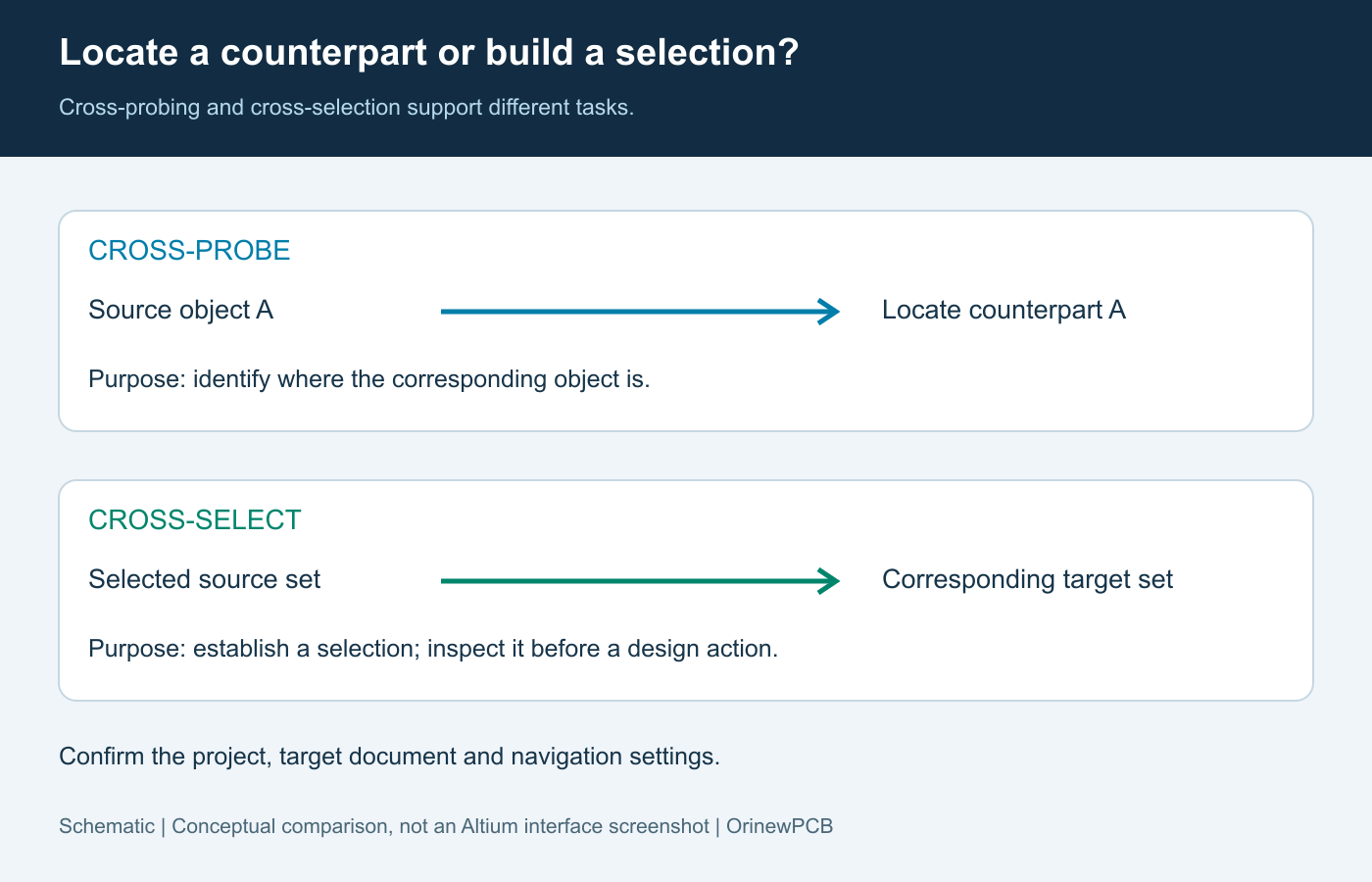
Use cross-probing to locate a corresponding object; use cross-selection when you need a corresponding selection set. Confirm the resulting objects before moving or editing them.
Altium’s cross-probing and selecting documentation distinguishes navigation to a counterpart from selection across schematic and PCB domains. Tools > Cross Probe locates the corresponding object. Cross Select Mode supports corresponding selections, with behavior affected by navigation settings. The documentation also identifies solution-dependent feature availability, so check the installed environment.
For example, when reviewing a connector and its supporting components, locate the connector on the schematic and PCB first. Confirm its designator and footprint identity, then build the intended component set. Review the target PCB selection before repositioning anything; proximity on the schematic is not an instruction to move every nearby footprint.
Keep the relevant source and target documents open so the correspondence can be checked directly. If an expected counterpart is absent or incorrect, resolve the project or design association before using the selection as a basis for a batch change. Cross-domain navigation is an aid to identification, not proof that all project data and manufacturing documents agree.
Check the changed result against manufacturing intent
Accept a bulk change only after confirming both the intended result and the absence of unintended changes. A completed command is not an acceptance record.
Compare the design before and after the operation. Review the changed attribute across the target group, check representative exclusions, and inspect crowded or unusual locations. A uniform value may be correct for most objects while making one designator unreadable or obscuring a polarity reference. Investigate exceptions rather than assuming a batch operation makes every object equivalent.
| Risk after a repeated edit | Evidence to inspect | Decision before release |
|---|---|---|
| Unrelated text was changed | Before/after object list and excluded examples | Narrow the scope and correct the unintended changes |
| A designator is no longer usable | Overlay artwork at actual geometry and assembly views | Resolve readability, location, and clearance exceptions |
| A moved component creates a new conflict | Relevant rule checks and mechanical/assembly review | Close the affected constraints before generating final outputs |
| Manufacturing files describe the earlier state | Output revision and independent artwork comparison | Regenerate through the controlled release process and verify the package |
Run the checks relevant to the change and retain the results. Rule checking can identify configured violations, but the review must also cover intent that is absent from those rules. Use the assembly drawing checklist to reconcile readable identifiers, orientation, population, and instructions with the released board. Do not use a clean visual screenshot as a substitute for checking actual fabrication and assembly outputs.
Customize repeated commands without hiding their meaning
Customize a small set of repeated commands after confirming the workflow they support. Keep the command names and expected starting states visible in team documentation.
The official shortcut guide describes Ctrl+click on a menu or toolbar command to open its assignment dialog. Review any existing assignment shown before accepting a new binding; reassignment can remove the shortcut from another command. Avoid turning a familiar key into an undocumented action that another engineer will interpret differently.
A useful team note records the command, editor, binding, prerequisites, and expected result. Test it on a copy of a known project after changing a workstation configuration or software version. If the behavior differs, update the note and resolve the difference before relying on it for a production edit. No particular number of shortcuts or claimed minutes saved establishes that the workflow is correct.
Pass the checked change into the existing release workflow
Interactive editing ends when the design change is verified; manufacturing release still needs its own controlled output process. Keep those responsibilities connected and explicit.
Use the established PCB design automation and release workflow for rule reports, output configuration, file generation, and archive checks. This keeps the shortcut procedure focused on editing instead of creating a second, conflicting release method.
For a full-turnkey PCB assembly build, the revised artwork must agree with the BOM, placement data, assembly drawings, and agreed test instructions. When the package is ready for OrinewPCB, provide the revised fabrication and assembly package with quantity, variant information, and open DFM questions so fabrication, sourcing, assembly, and agreed testing scope can be reviewed together. The value of Altium Designer shortcuts is a faster path to an understood change and a consistent build package.
Default commands were checked against Altium documentation accessed October 21, 2026. Verify feature availability and customized bindings in the installed environment.
Latest Blog
Contact Info
Phone: +86-755-82882936
Email: [email protected]
WhatsApp: +86-13570802455
Wechat: +86-13570802455
Address: 2nd floor,D Bldg.,Electric Link Technology Bldg.,Gongming,Guangming New Dist.,518106 Shenzhen, China